

FCM doesn’t support VoIP pushes; use APNs + PushKit for VoIP calls.
iOS UI Kit Sample App
Reference implementation of iOS UIKit, FCM and Push Notification Setup.
What this guide covers
- CometChat dashboard setup (enable push, add FCM iOS + APNs providers) with screenshots.
- Firebase/FCM + CometChat provider wiring (credentials, Podfile, capabilities).
- Token registration/rotation with CometChat Push Notifications (FCM iOS provider).
- Incoming message/call handling and deep links.
- Badge count and grouped notifications.
- Payload customization and testing.
How FCM + CometChat work together
- FCM’s role: Firebase issues the iOS FCM registration token and delivers the push payload. On iOS, FCM hands off to APNs using the APNs key/cert you upload in Firebase.
- CometChat Notifications’ role: The FCM iOS provider you create in the CometChat dashboard holds your Firebase service account. When you call
CometChatNotifications.registerPushToken(..., .FCM_IOS, providerId), CometChat binds that FCM token to the logged-in user and sends pushes to FCM on your behalf. - Flow (same bridge used in
android-push-notifications.mdx): Request permission → register for remote notifications → FCM returns the registration token → afterCometChat.loginsucceeds, register that token withCometChatNotificationsusing the FCM provider ID → CometChat sends payloads to FCM → FCM hands to APNs →UNUserNotificationCenterDelegatesurfaces the notification/tap.
1. Enable push and add providers (CometChat Dashboard)
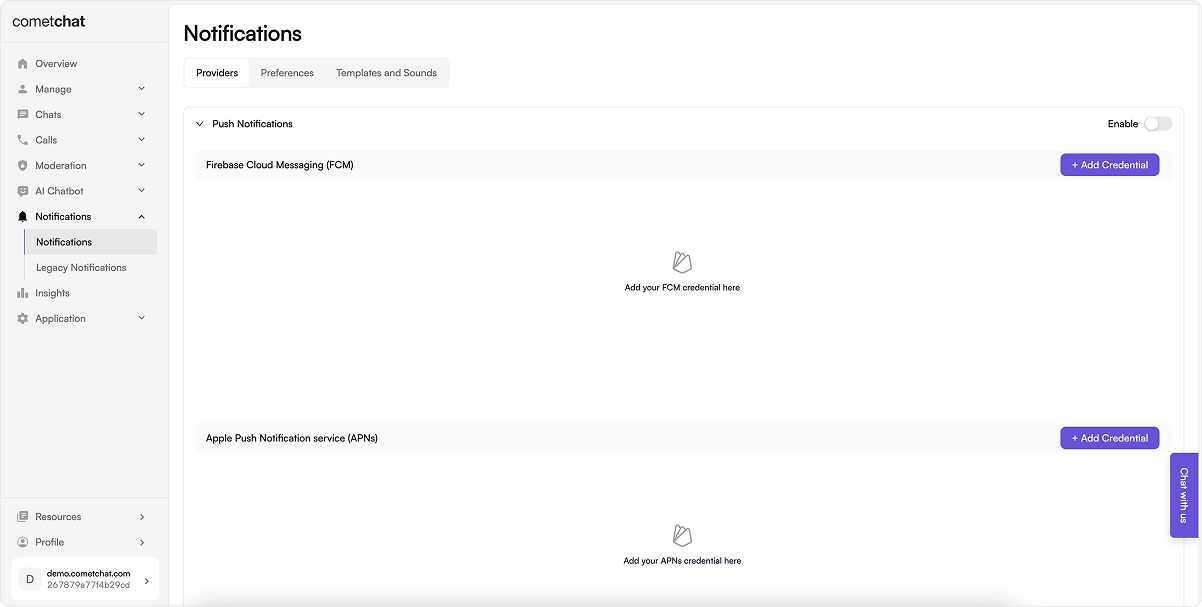
- Go to Notifications → Settings and enable Push Notifications.
- On Firebase:
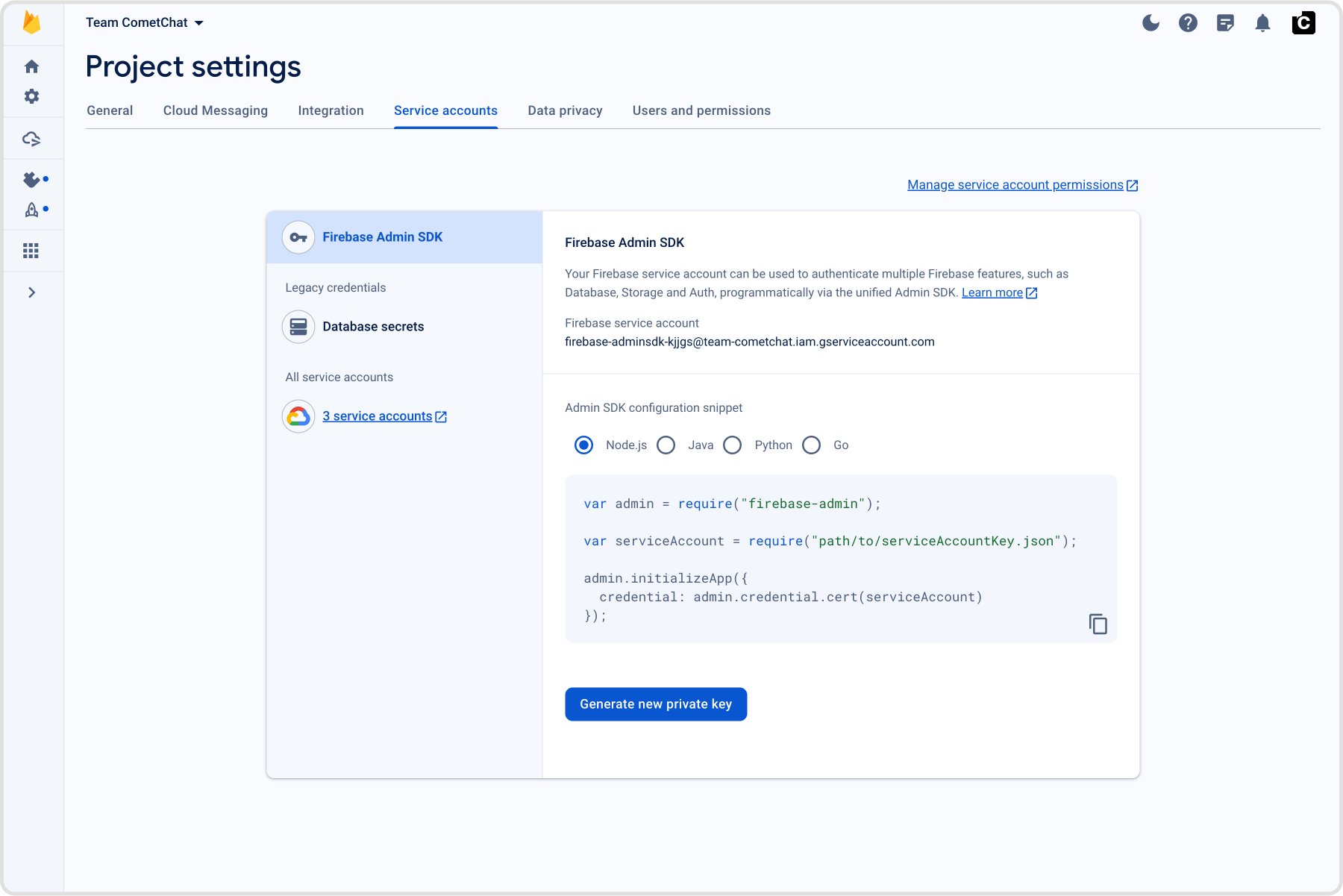
- Go to Project Settings → Service accounts and generate a new private key; download the JSON file.
- On CometChat Dashboard:
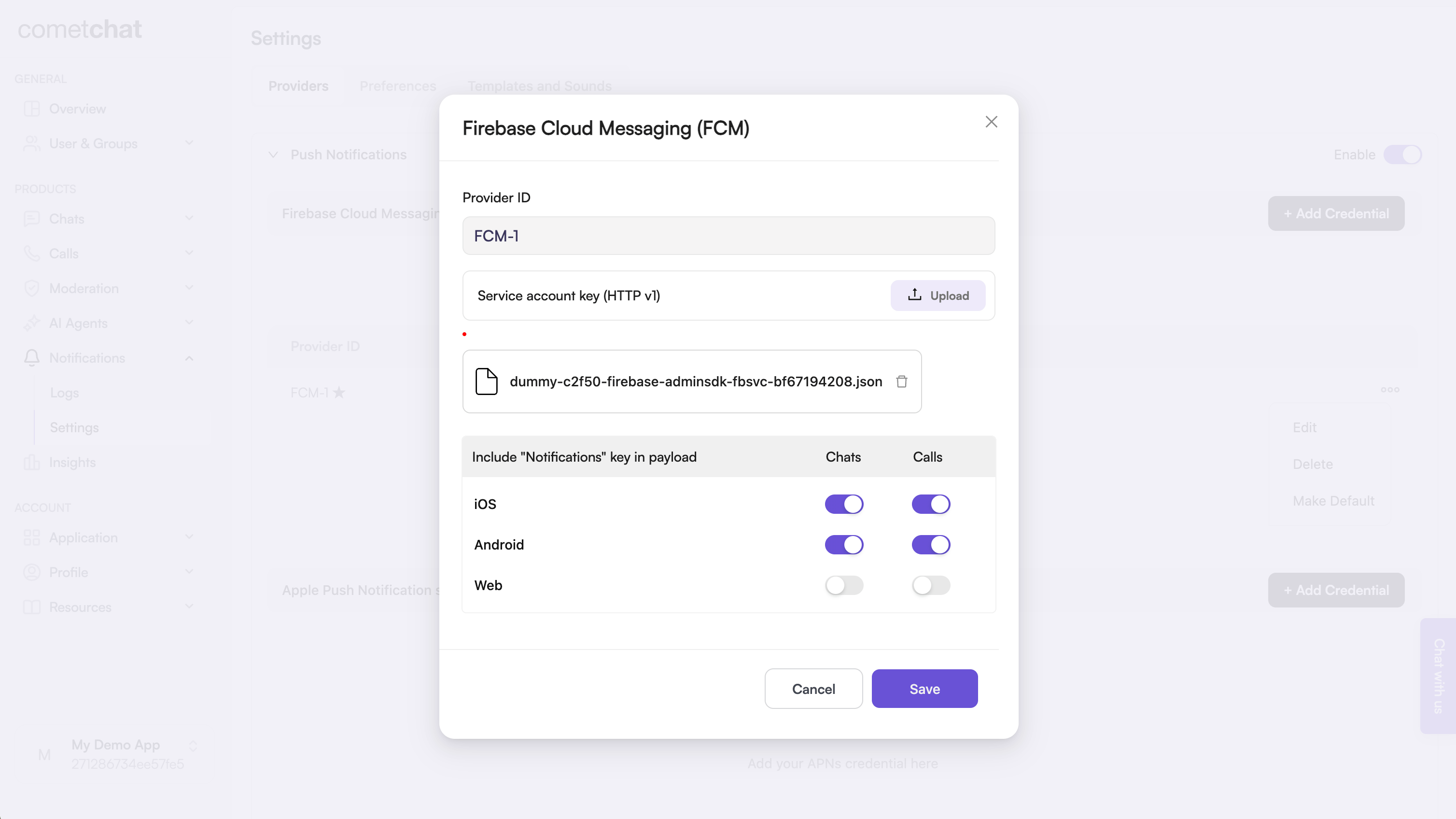
- Add an FCM iOS provider and upload your Firebase service account JSON; copy the Provider ID.
2. Upload your APNs Certificates
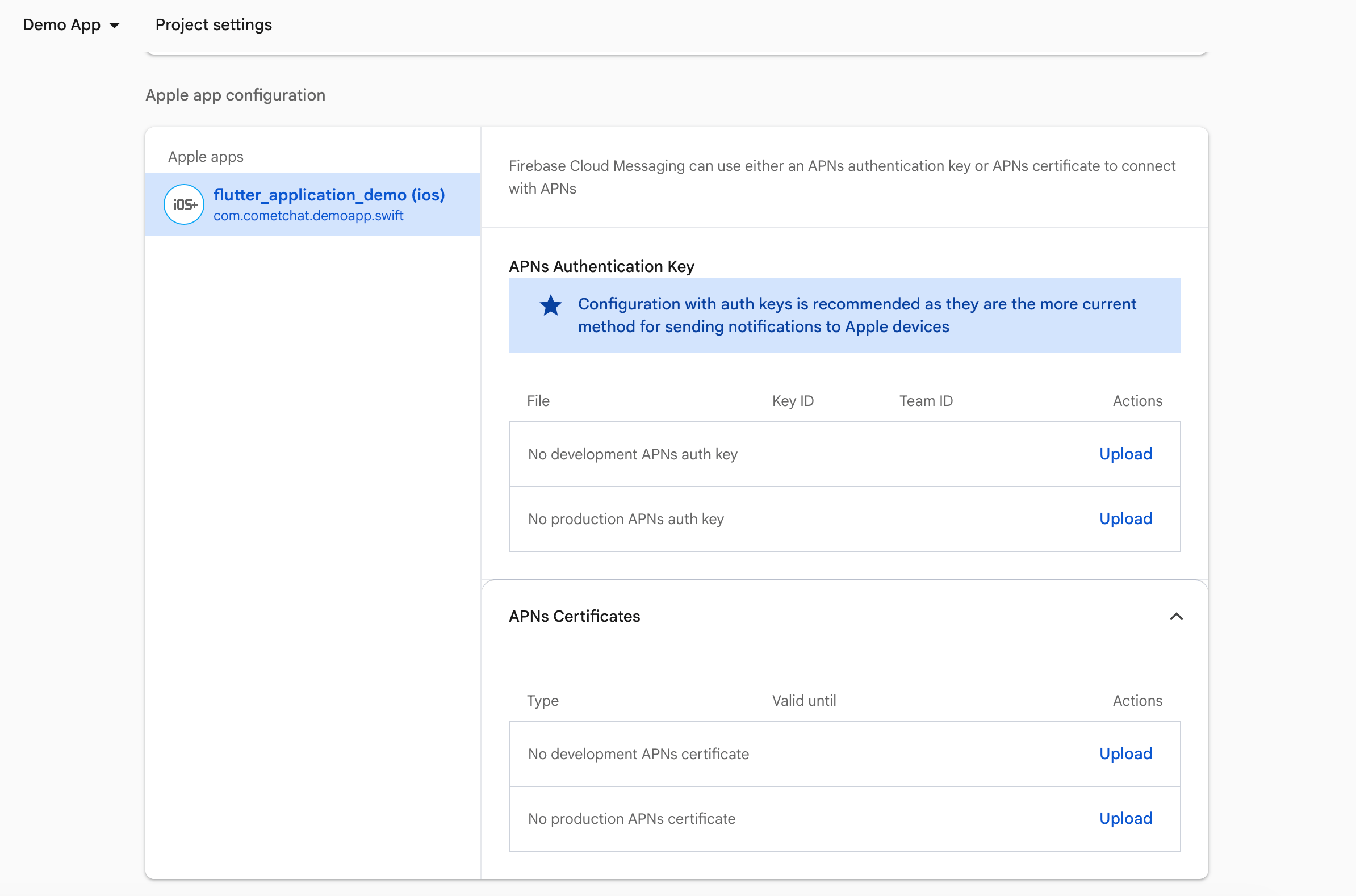
- In the Firebase Console, go to Project Settings → Cloud Messaging.
- Under iOS app configuration, upload your APNs authentication key or certificates.
3. Prepare Firebase and CometChat
- Firebase Console: download and add
GoogleService-Info.plistto your target.
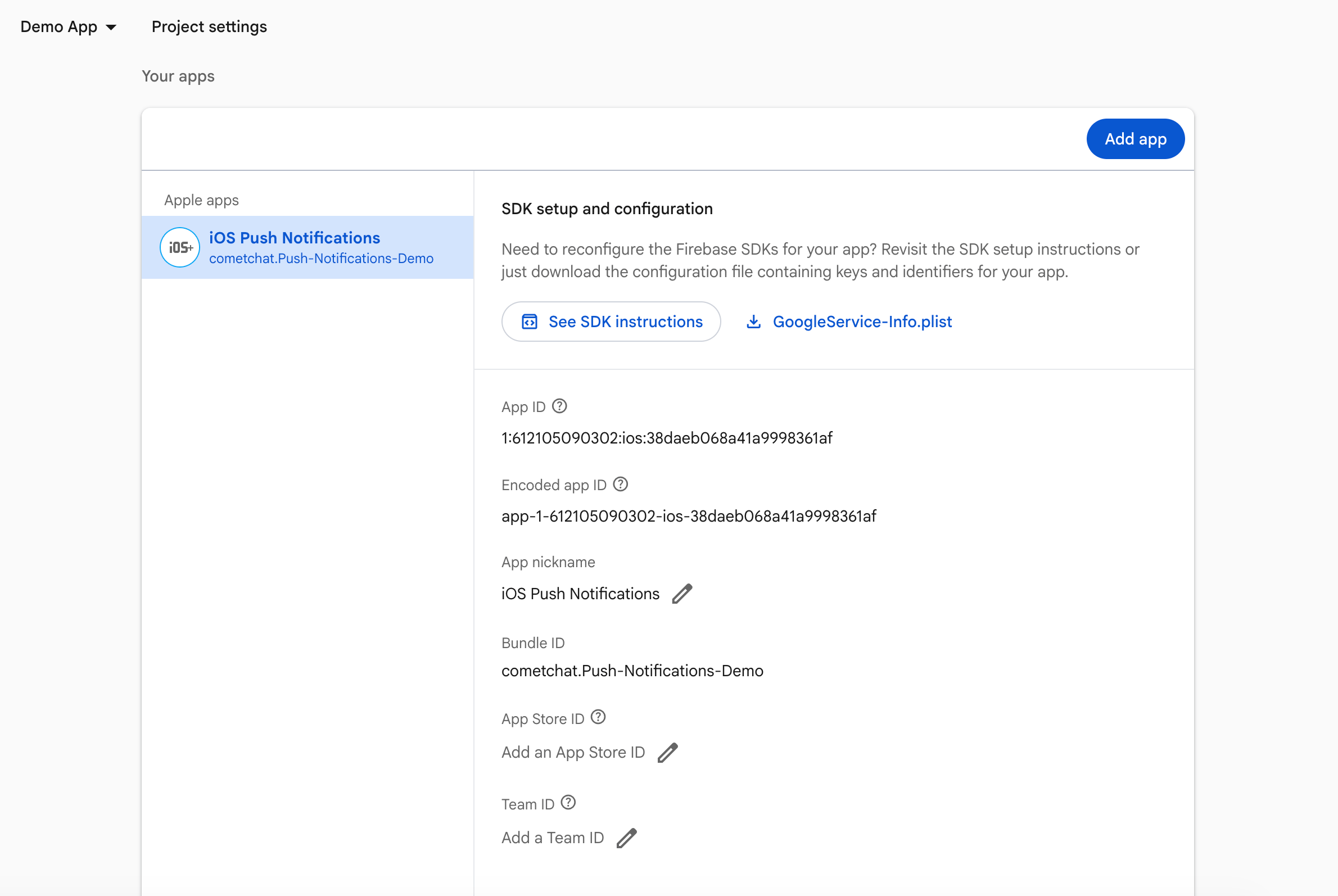
- Xcode capabilities: Push Notifications, Background Modes → Remote notifications.
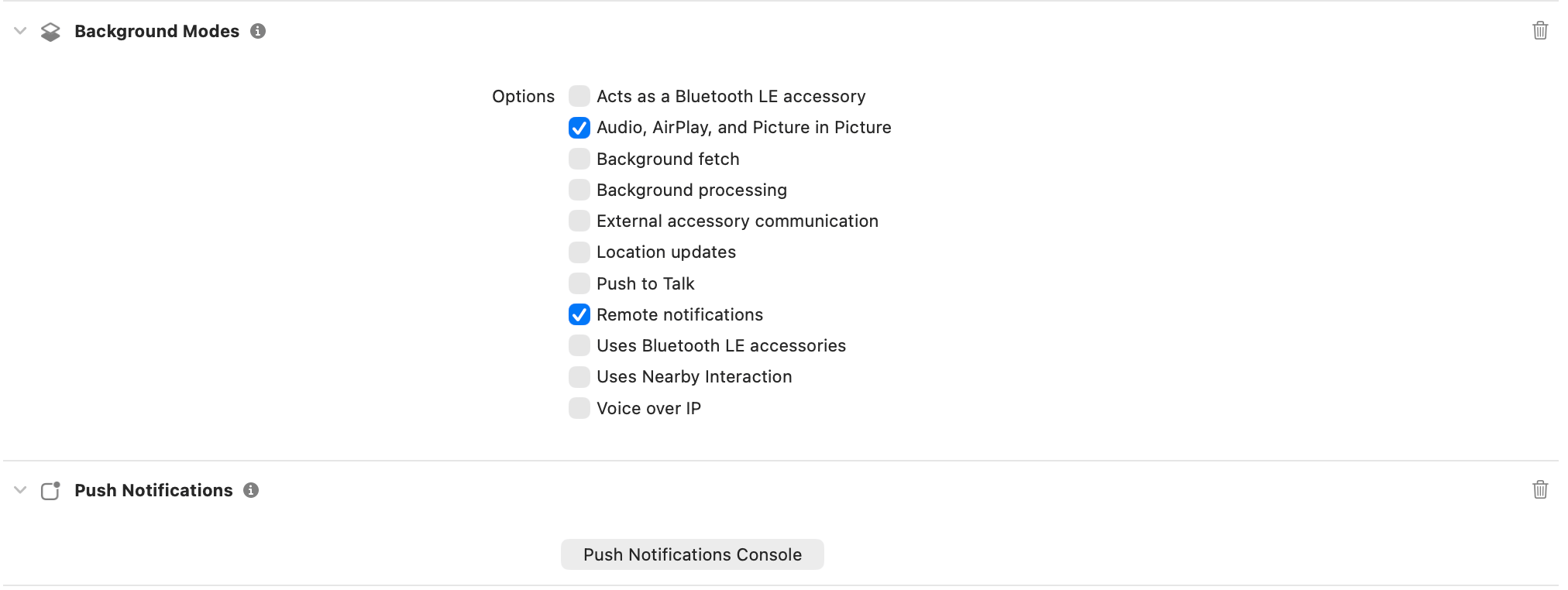
4. Add dependencies (Podfile)
pod install.
5. Wire AppDelegate (Firebase + delegates)
- Initializes Firebase, sets
MessagingDelegateandUNUserNotificationCenterDelegate, asks for alert/badge/sound permission, and registers for remote notifications. - Sets
Messaging.messaging().apnsTokenso FCM can map the APNs token and later deliver via APNs. - Stores the FCM registration token and calls
registerStoredPushToken()so CometChat can bind the token to your logged-in user (using the Provider ID you configured). - Leaves
willPresentto show banners/sounds in foreground instead of silently ignoring the notification.
6. Create FCM helper
CreateCometChatFCMHelper.swift and add:
- Wraps permission prompts + delegate wiring so you can call one method from
AppDelegate. - Sets the notification delegate early and registers for APNs on the main queue (Apple requirement).
- Keeps all push setup in a reusable singleton to call from tests, scenes, or multi-target setups.
7. Badge count and grouped notifications
CometChat’s Enhanced Push Notification payload includes anunreadMessageCount field (a string) representing the total unread messages across all conversations for the logged-in user. Use this to set the app icon badge and enrich local notifications.
7.1 Enable unread badge count on the CometChat Dashboard
1
Navigate to Push Notification Preferences
Go to CometChat Dashboard → Notifications → Settings → Preferences → Push
Notification Preferences.
2
Enable Unread Badge Count
Scroll to the bottom and enable the Unread Badge Count toggle.
unreadMessageCount field in every push payload sent to your app.
7.2 Clear badge count when app becomes active
Add the following to yourSceneDelegate.swift to reset the badge when the user opens the app:
7.3 Update badge count from push notifications
Update yourAppDelegate.swift to handle badge count updates in both foreground and background states:
- Foreground notifications
- Background notifications
The
unreadMessageCount field is sent as a string in the payload. Always
parse it to an integer and validate it’s non-negative before updating the
badge.8. Testing checklist
FirebaseApp.configure()runs; FCM token logs after login; registration with CometChat succeeds.- Message from another user:
- Foreground:
willPresentbehavior as expected. - Background/terminated: tap opens the correct chat.
- Foreground:
- Rotate the FCM token (
didReceiveRegistrationToken) and confirm re-registration. - VoIP: VoIP token registers; incoming call shows CallKit; Accept/Decline controls the CometChat call.